
After you sign up or sign in, the app opens Sensei. So do / and any address the app does not know.
Your first run
When you finish onboarding, Sensei opens a thread named Welcome to Sensei. It holds a greeting, a short video on how Sensei works, and your first card, What do you want to do first? The card says it is your first card. Pick one, then press Answer. On a phone, Help with my day comes first and is marked recommended:
- Work on my code asks you to connect GitHub, then shows a Repository card that names your workspace and lists the repositories Sensei can write to. Import one, and Sensei asks for your first change with suggestion pills. Send one, and a task starts: the first time, a box says what a task is, with its steps Plan, Build, Test and Ready. When the task is ready, a Merge card asks for your first real decision. After the merge, Sensei suggests what to try next.
- Build a new app shows a Describe card. Write what to build and press Create repository: Sensei makes a repository from kosuke-starter in your workspace, deploys it, and starts its first task on your sentence. Sensei links you to that task. Each task merges by itself once its checks pass, and the repository opens on its Preview, where you publish it. While Start from kosuke-starter is off on your deployment, this choice is not offered.
- Help with my day offers a few things to ask. Sensei answers your next request and shows Connect only for the account that answer needs, such as Gmail or Google Calendar. Not now goes on without it.
A first card written before Show me around first was removed still offers it. It shows what a thread, a task and a card are, then the first card again.
The first time a new topic starts a thread of its own, Sensei's first message there says why. A reply you type in a thread stays in that thread.
If Sensei free cannot run your turns and you have no Subscription, the Welcome thread first asks you to connect Claude Code, Codex or Gemini, with no Not now. The first card waits until one is connected.
A member with a Welcome thread never sees Get started below. Members who finished onboarding before the Welcome thread existed keep it.
Connect from Sensei's message
When a request needs a connection you have not made, Sensei's message carries a Connect button for each one, with its logo and name, and Not now. Sensei uses this block whenever it needs a missing connection, not only in your first run: GitHub for code work, a Personal integration such as Gmail, Google Calendar, Slack, Linear, Jira, Figma, Notion, 1Password, Xero, QuickBooks, Zoho CRM, Zoho Books, Zoho Invoice, Mercury, Granola, Rho, FreshBooks, Attio, Calendly, Canva, Fathom, Zoom, Outlook, Microsoft Teams, Salesforce or Monday, or a Subscription.
Press Connect and the provider's own sign-in opens in a pop-up. In the desktop app, an integration opens in your default browser instead, where consent and any tenant choice finish. One sign-in runs at a time. When it finishes, the server checks what the sign-in saved, and the button becomes a check with the account name. Sensei then carries on in the same thread. Not now lets Sensei carry on without it. A block that nothing can go on without has no Not now.
Higgsfield, Typefully and Cloudflare connect in Settings > You > Integrations. For a workspace integration such as Sentry, PostHog, Search Console, an ad platform, E2B or Sensei admin data, Sensei points to Settings > Workspace > Integrations. Choose Personal there for your own work; only you manage those connections.
With no workspace named, Sensei uses your personal integrations and the Personal space's workspace integrations. Naming a workspace reaches that workspace's integrations plus your personal ones, never the Personal space's. A restricted integration needs a grant for the workspace the call runs in, including Personal; a Superadmin can grant a Personal space in the admin panel.
A Connect item checks only the connection its own attempt made. Abandoning Add, or adding an account that is already connected, leaves it unchecked. A duplicate shows why it was refused.
Get started
A Get started card sits above Sensei's composer until you dismiss it. It shows how many of its three steps are done, such as "1 of 3", with a bar that fills as you go.
| Step | Its line | Its button | Done when |
|---|---|---|---|
| Connect your subscription | Use your Subscriptions for Sensei, or Sensei free while you hold none. Workspace Deploys use workspace Credentials. | Connect opens Settings > You > AI Providers | A Subscription of yours is connected |
| Import a repository | "Sensei deploys it for you. You do not have to wait." | Import opens the Import Project dialog for the workspace from your sign-up | A project exists in any workspace you belong to |
| Start the first task | "Tell Sensei what to ship in storefront." | Start puts "Ship this ticket in storefront: " in the composer | You started or filed a task |
A step waits on the ones before it. Until you connect a subscription, Import reads "After you connect a subscription." Start waits on both earlier steps. Start sends nothing. Finish the sentence with what you want shipped, then send it.
When all three are done, the card shrinks to one line, "You are set up. Sensei takes it from here." It stays until you press its X or leave the page, and then Get started is gone for good. Press the X to dismiss it at any step. Get started is yours, not a workspace's. Once it is done or dismissed, it never comes back, even when you join or create another workspace.
Use the personal model picker for your Subscriptions, or Sensei free while you hold none. A provider you hold no Subscription of runs on your Sensei workspace's Credentials instead of Sensei free. Connecting the first Subscription moves Free threads to Sensei’s default model from their next turn. Importing a workspace repository needs workspace Credentials for its first Deploy.
Ask across projects
Sensei answers from what your workspaces hold right now. That covers sessions, their pull requests and checks, what needs you, and recent Activity. It can also read a project's code to answer a question about it. When two workspaces could be meant, it names the workspace.
When an answer needs many sessions or projects read, Sensei can split the reading among helpers. Helpers are sub-agents of its own, on the same model and your Subscription. Each shows in the transcript as a row with its status. A helper only reads, so every action stays Sensei's. Sensei starts helpers only in an answer to your message.
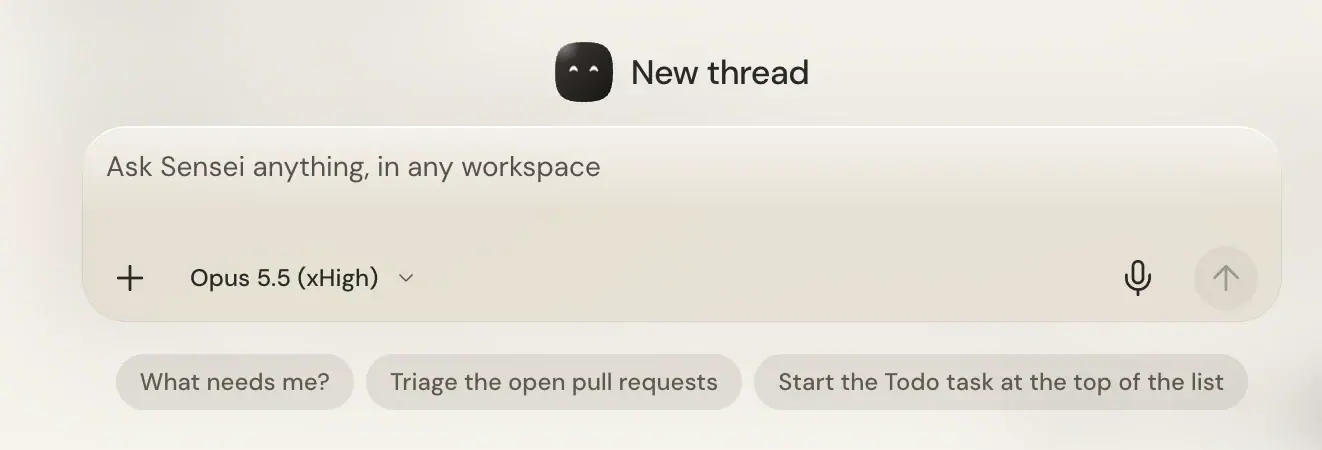
The composer reads "Ask Sensei anything, in any workspace". Before you have written anything, the chat says how much Sensei watches, such as "Sensei is watching 6 projects in 3 workspaces". Only workspaces with projects count.
When an answer to a message you write needs you, it ends with a card in its thread. A question to you is a Yes or Answer card. After an answer, the card offers the next step, such as filing a ticket, with Yes. When nothing follows, or the thread waits on someone else, Sensei draws no card. You mark the thread done yourself with Mark done when nothing needs you anymore. A thread whose session is working gets its card when the session needs you. A question from Spotlight gets no card.
Every task it names comes back as a chip, the same one a task shows when its agent files work to the Backlog. It shows the task's status and title. On a task that is active or under review, Message this task points the composer at it, as on a task in the panel. Click a chip's title to open the task over Sensei. Its dialog leads on to the chat. When it names several in a row, Copy all links copies them all. On an empty chat, try one of the starters it offers, such as "What needs me?" or "Triage the open pull requests".
The Threads list on the left holds every thread that matches the filter, with the ones that wait on you first and the rest by latest activity. A row shows the thread's title, then Sensei's face, its state, its number of replies, its pull request number and when it last changed. The list has its own search; press / to jump to it. "No threads yet" shows before you send a message, and "No thread matches." when a search finds none. Your own tickets in every workspace are in the Tasks column on the right, which the button at the header's right end shows or hides.
In the iOS app, Sensei opens on Home, the Deck, with Threads, the Sensei button, Tasks and Settings as tabs. See Use Sensei on a phone for what each tab holds. In a browser window narrower than 768 pixels, Sensei also opens on Deck: tap New thread to write a new thread, or press and hold it to talk.
Mention a task, a cron, a file, a thread or a member
Type @ in the composer to name the exact task, cron, file, thread or teammate you mean. The menu lists your most recent tasks, then your workspaces' crons, with their projects and status, then the most recent files an agent wrote, including the ones a cron run wrote, from every workspace you belong to. Then come your own threads, with their state, and the members of your workspaces, with their email and role. Keep typing to filter by title, a cron by its name, or a member by name or email, across every project. Arrows move, Enter or Tab picks, Escape closes.
You are not in the list. A teammate who shares two workspaces with you shows once for each, and the mention names that workspace.
The pick becomes @Title on a filled background. Backspace next to it removes the whole mention, and editing inside it turns it back into plain text. Once sent, the mention links to the task, the cron, the file open in its task or cron run, the thread, or a member's workspace in Settings > your workspace > Members.
Sensei gets a reference to each mention, not its content, and reads the item itself before it answers. A member mention gives Sensei that exact person, so a ticket you ask it to assign goes to them and not to someone with a similar name. Archived tasks and their files are not offered. A mention whose task, cron, file or thread is later archived or deleted stays in the message, struck through, and says why when you hover it. So does a member who left that workspace.
Ask it to act
Sensei has no modes. Every message is just talking to it. It acts on sessions only when you ask for exactly that. It files, starts and sends messages and skills into sessions, changes a session's status, merges a pull request when you ask, and acts on GitHub as you when you ask, such as marking a pull request ready. See Act on GitHub as you. Ask it to run /kosuke:sync-branch in a session, and it sends that skill there.
It does not read back credits or sandboxes, and it does not wait for a typed yes. Asking is the yes. When a request could mean more than one thing, it says what it would do and waits for your answer.
Whatever it does, it does as you. Sessions it files, starts or sends to record you as the one acting, and Activity shows those actions as yours.
Sensei never edits a repository itself. To change code, it starts a session.
The app writes what happens to your sessions as events, and Sensei decides what needs you and draws the card, in an Event Turn. See Decide what needs you. Sensei never starts /kosuke:ship on its own judgment, and it files or starts a session only when you ask. It never merges unless you ask, and it does not groom the Backlog. For scheduled work, such as backlog triage, use a cron. A cron can send messages to you. See Messages from a cron or an agent.
Prototypes
Ask Sensei to show you a change before it becomes a ticket, for example "Group the Sessions list by status. Show me two ways first." It draws a prototype, a page that runs in the browser, and writes it as an HTML file in the Files of the workspace the work is about. When it is unclear which workspace you mean, Sensei asks.
Each variant is its own file in a folder, such as prototypes/board/a-columns.html and prototypes/board/b-rows.html. Sensei's reply links each file as a file card. Press the card to open the file in Files, where the page runs in an isolated frame and its buttons and tabs work. To choose, say so in the chat, for example "Go with b-rows". Ask for changes and Sensei replaces the file, so the card always opens the current version.
On a phone, the design fills the screen above the bottom capsule. Use the capsule's arrows or state bars to change states, or swipe the design. The capsule shows the current state and its place, such as "2 of 5". Tap that line to show the state's description, and tap it again or tap away to hide it. Press the cross to return to the card or file.
The ⋯ button opens a sheet with Flow, Condition, Theme and Reset flow. Theme appears when the prototype has a theme control. A phone design uses your phone's width. A wider design scales to fit. A prototype file opened on its own has the same phone controls.
Files are shared. Every member of the workspace can open the prototypes there. The frame cannot read your Sensei login or call the platform. Sensei replaces only files it wrote in that work, or files you asked it to change.
To put a prototype on a ticket, ask Sensei to write the ticket and attach it. The ticket points at the file instead of copying it. Its build agent reads the current version when the session starts.
Prototypes stored before Files existed were removed. An old reply that held one shows "Prototype removed".
Create projects
Sensei can make a repository from kosuke-starter and import a repository. See Preview and publish. While Start from kosuke-starter is off on your deployment, Sensei cannot show the Describe card, and one already open refuses with the reason. Importing works either way.
- "Build me a booking app" makes a repository from kosuke-starter on your sentence. Sensei answers with the project's URL, and its first task starts on your sentence when the first deploy lands. If you belong to several workspaces and named none, it asks which.
- "Import acme/storefront" imports the repository. Add what to do first, such as "and add a footer", and that becomes its first task, which starts when the first deploy lands.
Sensei works in every repository the same way: it files and starts tasks, which run /kosuke:ship. In a repository on the merge train with Go-ahead When checks pass, a task merges by itself once its checks pass, so you see no Merge card for it.
Run a skill in Sensei
Type / in the composer. The menu lists your enabled Personal Skills. A workspace's skills do not reach Sensei. Pick one, add what it needs after its name, and send.
Picking a skill places its invocation before your draft and keeps the text you already wrote.
The Factory Skills are not in Sensei's menu, because each one needs a session's branch, pull request or Preview. To run one, such as /kosuke:open-pr, ask Sensei to send it into a session. Sensei checks that the skill is enabled using the agent the session’s model runs in, for every released provider: Claude Code for Claude, GLM, Kimi and DeepSeek; Codex, Muse Code or Antigravity for the others. Your Personal Skills always show, even one that needs a branch, because the app cannot tell what they need.
- Sensei has no repository of its own and cannot edit repository files. A skill that writes code works only in a chat session.
- Your Personal Skills reach your own Sensei only. Nobody else's Sensei can read them.
- A skill turned on or off in settings reaches Sensei at its next answer.
Sensei loads no plugins. Plugins run in chat sessions only.
Pick a model
Pick the model in the composer's model picker. While you hold a Subscription, or your Sensei workspace runs Sensei, it offers the models they can run, grouped by provider. With neither, it shows only Free, with the prompts left, and Connect a subscription. A login at its limit or needing reconnect still counts, including SuperGrok. A thread keeps the choice made in it. A thread with no choice of its own runs Sensei's default model: your Sensei workspace's Default Model while Sensei runs its provider on the workspace's Credentials, else your personal Default Model, the one in Settings > You > AI Providers. A pick in the New thread composer, before the thread exists, changes your personal Default Model.
When the provider of a thread's model is at its limit, Sensei does not move the Turn to another model. The notice names the provider and its reset, such as "Muse is at its limit until Sun 16:00", and offers Pick a model. Send waits until you pick another model or the limit resets. When no other provider can run, the notice says all your subscriptions are at their limit, names the first reset and offers Connect a provider. When the selected provider needs a sign-in, the notice offers Connect a provider or Reconnect.
For Gemini, the picker uses your saved Antigravity sign-in. There is no personal Gemini API key or method selection.
The picker leaves out the Ultracode and Ultra efforts. If your last pick or Default Model uses one, Sensei runs at the highest effort below it that the model offers. Switching a personal model to another provider hands the conversation over, and the transcript marks where. Free routing keeps its moves hidden.
The Notifications from Sensei switch in Settings > You > Preferences turns Sensei's notifications on or off on the device you set it on. It does not stop pushes to your phone.
The Free selection reads Sensei free. Its help tooltip says "Connect a personal subscription to use top-tier models." Free is available only while you hold no Subscription. Sensei free runs one fixed model staff choose. The app shows no Free model, Source, provider or Source move.
Member Turns and Event Turns follow the thread's stored choice. Each Free Turn spends one prompt from your shared one-time allowance: 100 Sensei free prompts, never renewed. An Event Turn that only reads the end of your task's turns that already spent a prompt spends none. At the cap, other Event Turns wait. No workspace Credentials pay for Sensei.
Limits, reconnects and provider failures never move work to Free. Connecting the first Subscription moves Free threads to Sensei's default model from their next turn; removing the last moves explicit choices to Free. A running turn keeps its source. When your Subscription cannot run or Free is unavailable, Sensei names the problem. See AI providers.
Send while it works
A message you send in a thread while that thread's reply is running waits in Up next, the list above that thread's composer, and starts the next turn there. Each thread has its own Up next. A message you send on the Sensei page starts a thread and never waits, with Working and a spinner while five threads are already being answered. In Up next you can edit, move or delete a message, or send it now. Up next is Sensei's only: in a chat session, the Deploy Chat and the Merge agent chat, a message sent during a turn steers it. See Messages and steering.
To have Sensei take a message into the answer it is writing, steer it. Press ⌘Enter (Ctrl+Enter on Windows and Linux) as you send, or press Steer now on its row in Up next. Steering works with every model Sensei runs. If the turn ends before it takes your message, the message goes back to the top of Up next.
A message Sensei sends into a session for you, such as an answer to a question or a Fix, steers the turn running there, whoever started it. With no turn running, it starts one. An Event Turn waits in a thread's Up next behind your messages. While one runs, you can steer a message into it. See Sensei reads the new events.
Pressing Stop in a thread pauses that thread's Up next only. Send a new message to carry on: it goes out at once, and Up next follows its turn.
You can attach images to a message, and PDFs too with a Claude model. Sensei reads no other file types. Sensei can read a thread's attachments again in its later turns, so you can ask it to send a file you attached earlier. It keeps them for your 20 most recently used threads, until a thread has had no turn for seven days.
Who can see it
Each person has one Sensei. It covers every workspace you belong to, and nothing else. Nobody else can read yours, in the app or through the API, workspace admins included. The files Sensei writes are different: they live in the workspace's Files, where every member of that workspace can read them. You can read your own chat from a terminal with kosuke sensei chat get and your API key. No agent can read the flat chat, Sensei's own credential included. Sensei can read another thread when your answer needs it. Leaving a workspace closes your cards about that workspace and forgets what Sensei knew there. The rest of your Sensei stays.
Every person has Sensei.
What it costs
Sensei uses your selected Subscriptions or Sensei free. Each member or Event Turn on Free spends one prompt from your shared allowance. Its picker shows prompts left; its composer names a pause or empty allowance. The first Subscription connect and last removal move the choice from the next turn; limits and reconnects never move it to Free.
The app picks one Source for each Free Sensei thread Turn, including Event Turns. It works like a personal Subscription within your allowance. When that Source reaches its limit, is paused or is removed, the app moves the work automatically. A running Turn continues on another Source with the same model, at no extra prompt. When none is left, the Turn stops, and the next Turn hands off to another provider. These moves and the model, Source and provider stay hidden. If no eligible Source is available, Free waits until one is.
Workspace sessions Sensei starts or sends into use workspace Credentials only. Personal tasks follow their own selected source. Notifications and merges the app makes for you cost no Sensei Turn.
Sensei runs in a container of its own on the platform's servers, which the platform pays for. It is not on any workspace's Usage or bill, and it needs no credits. The container stays on, so an answer usually starts at once. When it has to be started again, the first answer takes longer, and the transcript reads "Waking Sensei" while you wait. When many people's Sensei are answering at once, yours can wait a moment before it starts. Your own container answers five of your threads at once.
To script the same work from your own terminal or agent, use the Sensei CLI.
Memory
Sensei reads your private Memory at the start of every turn. It proposes changes as a card you review and approve. You can also edit it in Settings > You > Memory.
When you share your location from the iOS app, Sensei also knows where you are, for up to 24 hours after your phone last shared it. See Share your location with Sensei.