
Threads run at the same time. Send two messages within a few seconds, and both read "Working". Neither waits for the other.
The app also opens a thread for anything that needs you and has none yet. That covers a session, a project's Deploys, a Cron and a message from a cron or an agent. A project has one thread for its Deploys, "Deploys of" and the project. A Cron has one thread, reused on every failed run. Each message has its own thread, and so does each project's QA guide. A review request on a teammate's pull request goes in a thread for that session. Sensei does not open these threads and does not answer in them unless you write there. It reads the events written in them in an Event Turn, and draws cards.
A thread has one of three states. A member Turn or Up next message makes it Working, unless every member row came from a card button and a card is open; otherwise an open card takes priority:
| State | Meaning |
|---|---|
| Needs you | An open card |
| Working | A member Turn is pending or running, a message waits Up next, or your own session is Active or Under Review |
| Done | Everything else |
Sensei answers at most ten of your threads at once, counting the threads where it reads new events. An eleventh stays Working with a spinner while it waits, and starts when one of the ten ends, oldest first. Your own messages go first. Job Delegates take at most four of those places, so a pull request, check or message event starts within a minute even while many delegates work or wait.
A new release reaches your Sensei once what it is doing has finished. Nothing running is cut off. A new thread can wait the same way until the update is done, at most a Turn's length, and then starts on the new release.
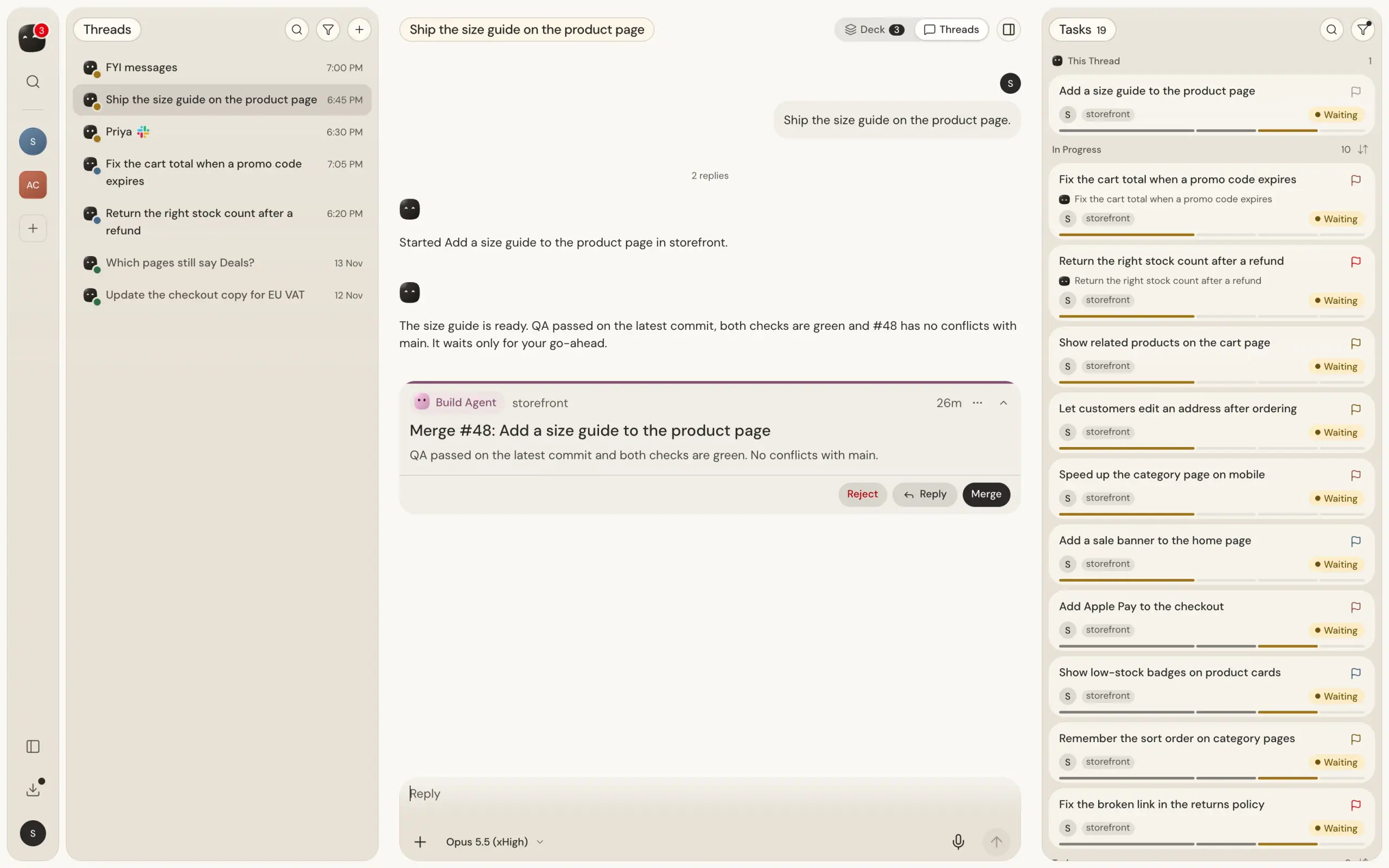
An open thread shows, from the top, a back button, its title and its state, then one chip for each session it holds. Press the arrow on a chip to open the session's page, or click its title. Below are your first message, "N replies", Sensei's replies and the app's receipts. Cards sit inline in the thread's timeline at the time they arrived, as described in Decide what needs you, so a message you send after a card shows below it. A reply you write here stays in the thread. Tick Also send to Sensei to show it on the Sensei page too. The tick clears after each reply.
A receipt is one line the app writes, with no Sensei reply behind it. It says that something opened or closed, such as "Merged", or that something happened that asks nothing of you, such as a first deploy.
On a wide screen the thread replaces the panel on the right, beside the page. In the iOS app and in a narrow window it fills the screen. Press the back button to return. The open thread is in the address, so a link or a notification on a computer lands on it.
A session belongs to one thread. A message that names a session, such as with a mention or a To #N chip, stays where you sent it, even when the session belongs to another thread. When one message asks for several things, such as "Ship these: A, B and C", Sensei does the first in your thread and starts a thread for each of the others, marked "Split from your message". A message that fits an open thread better can be moved there. Sensei says so when it moves one, and it never moves one once it has changed something.
Everything you said before threads existed is in one thread named Earlier. Reply there and Sensei answers with the memory it had.
A thread knows its own history. Sensei also sees a short list of your other open threads, and reads one on request.
What the counts mean
A thread is marked exactly when its state is Needs you: a card is open. Its row has a dot and a plain title. Events and receipts do not mark it or move it up the list.
The sidebar Sensei row counts Needs you threads.
Filter the threads
The Threads filter offers Project, then the states Needs you, Working and Done as checkboxes, all three checked by default. Needs you and Working show counts under the current Project filter and search. A row shows one state, with a spinner beside Working while a Turn runs or a message waits Up next. The dot means Needs you. Event lines and Receipts neither mark nor reorder a thread. Your choice stays set across a reload.
Choose Mark done from a row's menu in the Threads list to set aside your own working sessions until new activity. An open card, a running Turn or an Up next message prevents this, with a reason in its tooltip.
Nothing hides or archives a thread on a timer. When what waited on you closes, the thread reads Done and stays listed under Done.
Threads that wait on you come first, in a fixed order: a teammate waiting on you, your blocked builds, failures, merges, then messages. Inside a group, the latest activity comes first. The other threads follow, by latest activity.
Pin a thread
Right-click a thread in Threads, or on a phone press and hold it in Search or choose Pin in an open thread's ⋯ menu. A pinned thread shows a pin beside its title and stays at the top of the list, above every thread you did not pin. Choose Unpin to put it back in its usual place. You can pin as many threads as you like. Among the pinned threads, and among the others, the usual order holds: threads that wait on you first, then the latest activity.
A pin changes the order only. The filter and the search still apply, so a pinned thread must match your selected state like any other thread. A pin is yours, and it shows on every device you sign in on.
Clear or compact a thread
Type / in a thread's composer, with any model, to open the menu. It offers the commands marked Runtime, /clear and /compact. Pick one, or send it as the whole message. With a Codex model, $clear and $compact work too. With a Google model the menu offers /clear only: Gemini models compact by themselves, so a /compact sent anyway leaves a line that says so and changes nothing.
/clearstarts a fresh conversation in that thread. Sensei's next answer there knows nothing said before it, and every other thread keeps its memory. Every earlier message stays on screen above a "New conversation from here" line./compactsummarizes the conversation so far to free up context. Add a focus after it, such as/compact focus on the backlog tickets. It takes about a minute. The composer stays open meanwhile: a message you send then waits in Up next and goes when the compaction ends, and nothing steers into a compaction. The transcript then reads "Conversation compacted" with the token counts before and after, and the ring by the composer drops. With a Codex model, the focus stays in the conversation's history as a note, which Codex may not follow. With nothing to summarize yet, it says "Nothing to compact yet".
The composer on the Sensei page does not offer them, because they act on one thread. A command sent while that thread is being answered, or while another command runs there, waits in Up next and runs when it reaches the top. You can edit, move or delete it there, but not steer it or send it now.
A thread also compacts on its own. When the ring by the composer reaches 70% after a reply, Sensei runs /compact there by itself, focused on what the thread is for: its goal, the decisions taken, what is still open and the work in progress. It goes the way a /compact you send goes: it waits in Up next behind a reply that is still being written, and what you send meanwhile waits behind it. Its line in the transcript says it ran automatically. It does not run again within 10 minutes, and never with a Google model, which compacts by itself, or a Grok model, which cannot. You can still run /compact or /clear whenever you like. A compaction loses nothing that matters to your queue. What waits on you lives in the app, not in the conversation: cards, their order and their notifications are read fresh on every turn.
Search a thread
A thread that lives for weeks keeps every message, back to its first day. To find one, open the thread and pick Search this thread: on the phone in More at the top right, on a computer the search button at the top of the thread. Type at least two characters. Sensei's replies and your own messages that hold the words show in place of the thread, newest 50, with the words marked. Case does not matter, and % or _ match themselves. Tap one to go to it in the thread, with the messages around it. Done closes the search.
From a terminal, kosuke sensei threads search <threadId> --q <words> answers the same messages with their ids, and kosuke sensei threads get <threadId> --around <messageId> reads the replies around one.