
Sensei never sends a reply on its own. A drafted reply waits on its card until you tap Send.
What Sensei can watch
| Service | How it connects | What Sensei reads | How often |
|---|---|---|---|
| Gmail | Connect Gmail, through Composio, Sensei's integration broker | New mail in your mailbox | About every minute |
| Slack | Connect Slack, through Composio | New messages in your direct messages, group messages and channels | About every minute |
| Telegram | Connect Telegram, with your phone number or a QR code | New messages in your chats | About every minute |
| Connect WhatsApp, as a linked device, with a QR code or a phone number | New messages in your chats | At most once a minute | |
| Connect on the LinkedIn row, on one of your Macs and one Chrome profile | New direct messages, from the conversation list | About every 15 minutes | |
| X | Connect on the X row, on one of your Macs and one Chrome profile | New direct messages in X Chat, from the conversation list | About every 15 minutes |
You connect each service in Settings > You > Integrations. The steps for each one are in Your own integrations: Telegram, WhatsApp and LinkedIn and X.
Sensei skips some messages on every service:
- Your own messages. Sensei reads them only to know that you answered, so a card about a message you already replied to closes. See Events.
- Muted chats on Telegram, muted threads in Gmail, and Slack channels you muted or left.
- Messages from before you turned the service on.
Turn Watching on
Every service starts off. Nothing is watched until you turn its service on.
- Open Settings > You > Preferences on the web, or Preferences in Settings in the iOS app on your iPhone.
- Press Message watching. A list opens with one switch for each of Gmail, Slack, Telegram, WhatsApp, LinkedIn and X.
- Turn on the services you want Sensei to watch. Each switch saves the moment you change it.
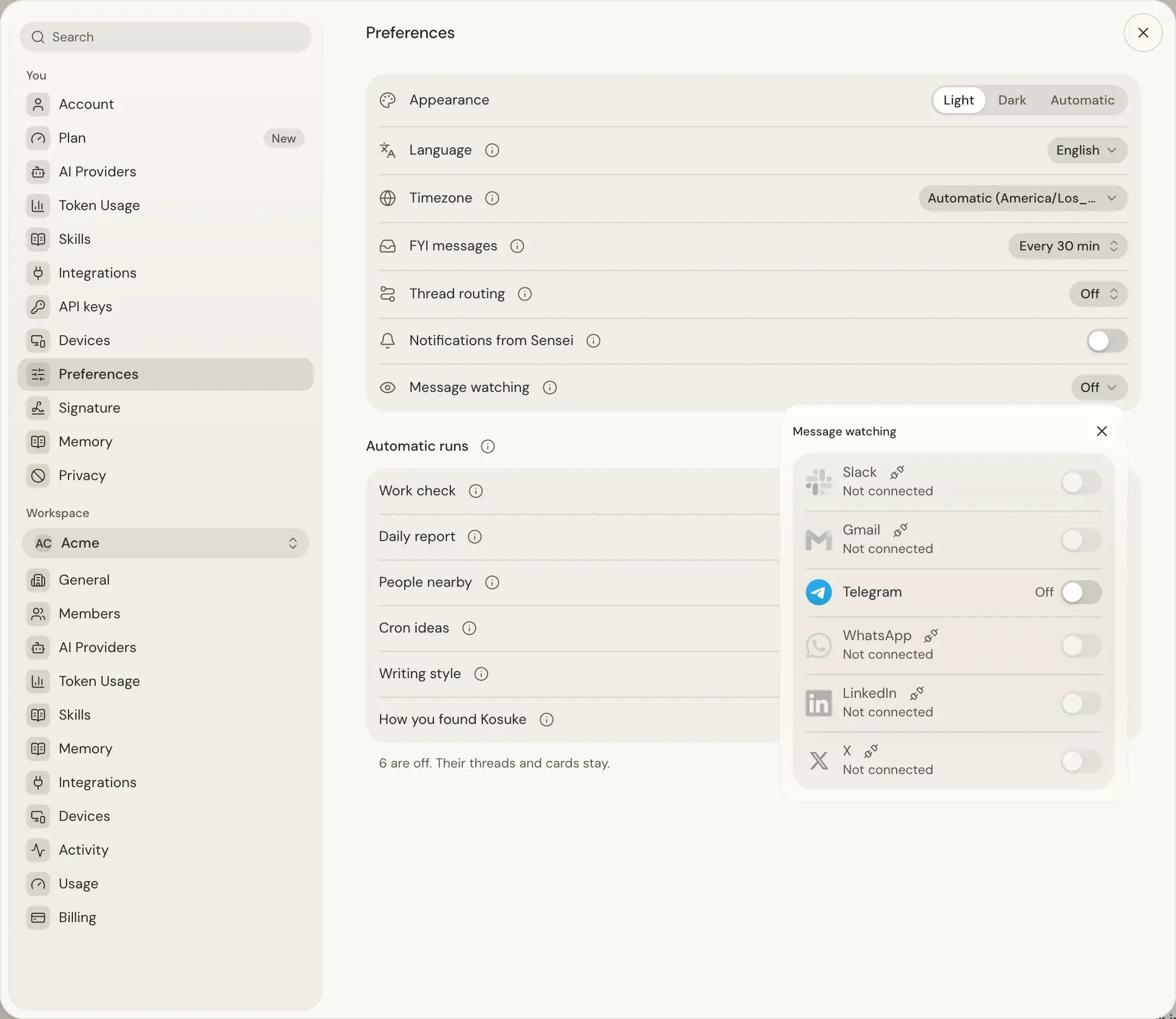
Only a service you connected can be turned on. A service with no connection reads Not connected, and the unplug icon beside its name opens Integrations at that service. A service that is on but lost its connection reads Paused, not connected. Your choice is kept, and Sensei watches it again by itself once you reconnect it.
The choice is yours, per service, and the same on every device and in every workspace. Every account you connect for a service follows it. Turning a service off disconnects nothing: Sensei can still use the service's tools when you ask. The switches and their states are described in Message watching.
LinkedIn and X
LinkedIn and X have no service Sensei can call for your messages. Your own Sensei reads them in its own browser on your Mac instead, with the sign-ins of a Chrome profile you allowed under Chrome sign-ins. See Chrome sign-ins.
About every 15 minutes, while the Mac is online, the app starts a Sensei turn that opens the site's conversation list in a phone-sized window and reports what it sees. The read only reads. It opens only pages of that site, never clicks or types, and opens no conversation, so nothing is marked read on the site.
Each read is a Sensei turn on your Sensei model:
- On Sensei Free, Watching cannot read LinkedIn or X. The connection's Watching line reads Needs a model subscription.
- The app holds a read to its two
kosukecommands only on Claude, Kimi, GLM, DeepSeek and Grok models. On another model, Watching does not read, and the line reads Needs another model.
A read sees only each conversation's newest message preview. Several messages in a row arrive as the newest one, and a long one is cut.
When you approve a reply card for LinkedIn or X, your Sensei opens the conversation in its browser on that Mac and types the draft there. Opening a conversation marks the whole conversation read on the site. Direct messages on LinkedIn and X always get a drafted reply card, never the FYI digest, because Sensei cannot mark them read without opening them.
Unlock X Chat
X can ask for your X Chat passcode before it shows your messages. A Watching read never types a passcode. When it finds the passcode page, X Watching stops, and the X row in Settings > You > Integrations reads Passcode needed. Sensei also puts a card in a thread with Unlock.
To read again, unlock X Chat yourself on your Mac:
- Press Unlock on the X row in Settings, or on Sensei's card, on a computer.
- The Sensei app opens X Watching's own window on your Mac, at X Chat. The row reads "Unlocking in X Watching's window on" and the Mac's name.
- Type your passcode into X, in that window, then close the window.
The window also closes by itself once your messages show, or after 10 minutes. Sensei then checks X Chat with a read of its own. While it does, the row reads Checking X chat. Once the read sees your conversations, Watching reads X again.
- Kosuke never sees, keeps or logs your passcode. There is no field for it in Sensei, and Sensei never asks for it in a thread.
- If X still asks for the passcode when the window closes, the row says so, and Try again opens the window again.
- Stop closes the window and ends the unlock. Unlock starts it again.
- On a phone, the row and the card read "Unlock from your Mac. It opens X Watching's window there." Stop still works from the phone.
- If the Sensei app on the Mac is too old to open the window, the row says to update it on that Mac.
- If the Mac is offline, or X Watching is reading X at that moment, Unlock is refused with the reason. Try again once the Mac is online, or in a minute.
Sensei tells you not to reset the passcode in X: a reset can lose your older encrypted messages.
When reading stops
Each connection in Settings > You > Integrations has a Watching line. When reading stops, it says why:
| Line | What it means |
|---|---|
| Reconnect required | The connection needs a new sign-in. Reconnect it in Integrations. |
| Trying again | No read worked for 30 minutes. Sensei keeps trying by itself. |
| Signed out, Different account | The LinkedIn or X sign-in on the Mac changed. Press Disconnect, then Connect again. |
| Mac removed, Profile off | The Mac or the Chrome profile the connection reads in is gone or not allowed. |
| Update the Sensei app | The Mac's desktop app is too old to read. |
| Needs a model subscription, Needs another model | Your Sensei model cannot run a LinkedIn or X read. |
| Passcode needed | X Chat asks for its passcode. See Unlock X Chat. |
After a read fails, Sensei waits a little longer before each next try.
Limits
- Watching reads only messages that arrive after you turn the service on. Earlier messages are never fetched or replayed.
- One read takes at most 50 new messages. The rest come in the next read.
- Turning a service off deletes nothing and marks nothing read. Cards you already have stay.
- LinkedIn and X are read only while the Mac is online, with a current Sensei app and Google Chrome.
- Only your own Sensei uses a LinkedIn or X connection. Chat Sessions and Cron Runs never do.
Next steps
- Triage and the FYI digest for what happens to each message Sensei reads.
- Your own integrations to connect Gmail, Slack, Telegram, WhatsApp, LinkedIn and X.
- Cards and the Deck to approve, edit or skip a drafted reply.
- Your account and preferences for the Message watching switches.