
Notifications
Every card sends one notification when it opens, unless Sensei marks it as one that can wait: such a card shows in its thread and in Deck and sends none. A receipt about something that asks nothing of you, such as a first deploy, sends none, and neither does an event line.
- What it says. The title says in which thread the card is. The body is the card's headline.
- Where. On every device at once: the desktop app, the browser, the iOS app on your iPhone and your Watch.
- When not. The app holds back only the notification for the thread you have open on screen, on any device. A card in any other thread notifies you, whether the app is in front or not, and even while Sensei is open.
- Clicking. On a computer it opens the thread. On an iPhone or iPad it opens Deck on the card, or the card's thread when the card is no longer open. On a phone that thread opens over Deck: Back or a swipe returns to Deck. There, all of Sensei's notifications share one stack.
- Deciding from it. On an iPhone, press and hold the notification, or pull it down, to decide the card without opening the app. See Decide a card from its notification.
- Taking it off. Opening the thread on one device, or the card closing, takes its notification off your iPhone and Watch.
An update to a card notifies again only when what it sends changed: its instruction, the text it compares, or its question and options. Notifications are sent by the app when the card opens, so they do not depend on Sensei's model.
Choose where notifications reach you
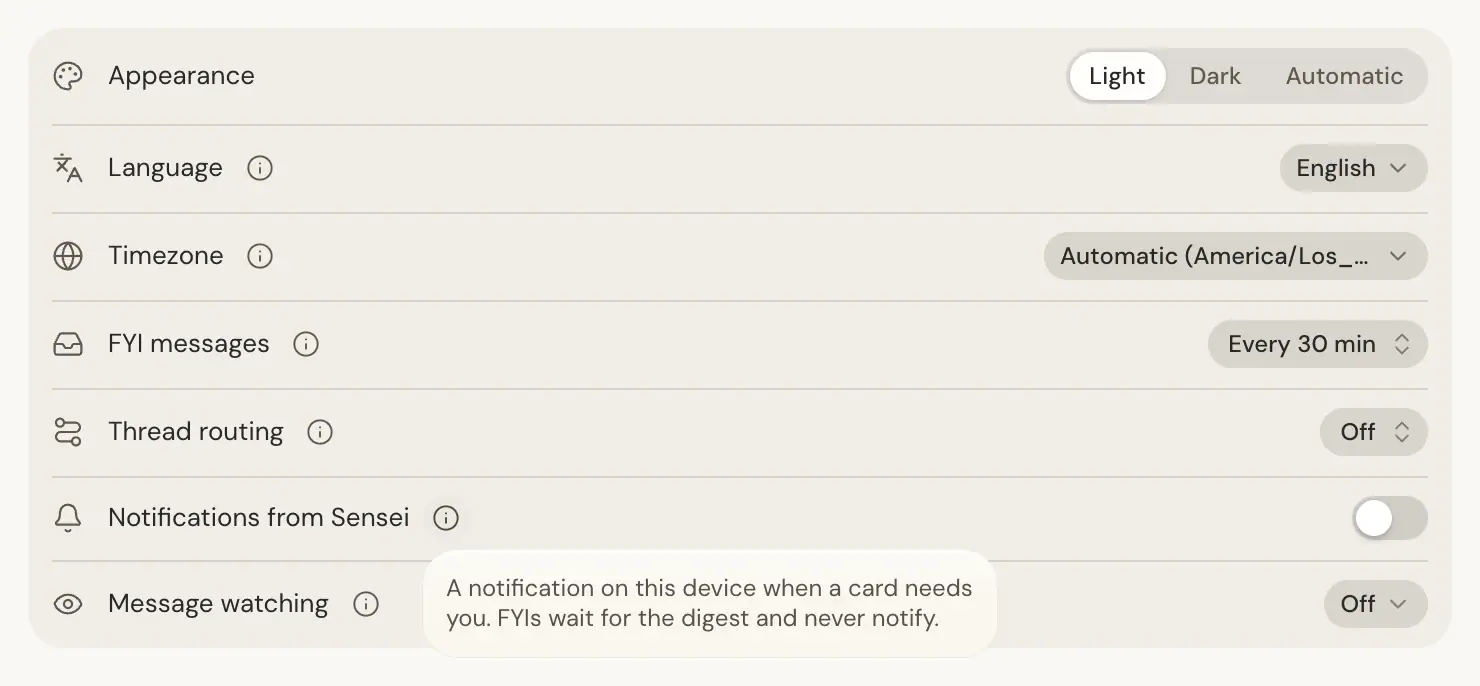
- In a browser or the desktop app, turn Notifications from Sensei on or off in Settings > You > Preferences. It applies to the browser or app you set it in, and reads on only once notifications are allowed for Sensei. See Notifications from Sensei.
- On your iPhone and Watch, open Settings in the iOS app, then Notifications under This iPhone. iPhone and Apple Watch each have a switch, on to start. The Watch mirrors the iPhone: with iPhone off, Apple Watch reads off and is locked, and it gets its own choice back when you turn iPhone on again. Meta glasses reads Not yet. If a change cannot be saved, the switch goes back and the page says so.
FYIs never notify, whatever these switches say.
Decide a card from its notification
On an iPhone, press and hold a card's notification, or pull it down. Its buttons are the card's own:
- The verb, such as Merge or Fix, does what the card's verb does in the app.
- The negative button, such as Reject or Skip, closes the card and sends nothing. It is red when the card's own is.
- Reply opens a text field. Your words go to Sensei about the card, and the card closes as replied.
A card with one question of two to four options that takes one answer shows the numbered options and Own answer instead. A number picks that option. In Own answer, the option's number, its title or the words the notification shows for it picks it too, and other words are your answer.
On a locked iPhone, each button asks for Face ID or your passcode first. When a button cannot finish, a new notification says so, for example "This card changed" or "Merge may not have gone through". Tap it to open the card.
The verb shows the card's own word when it is one Sensei uses on its cards, such as Approve, Fix, Merge or Yes. For any other word, the button reads Approve. On a card with actions, the verb is its primary action, or its first, and pressing it sends that action's message. The Watch and the glasses show such a card the same way. Some cards offer no verb on the notification: a card with no verb, a Deploy form, and a card with several questions or a question with several answers. Open those in the app. The Watch shows Open only. These buttons need the iOS app 1.0.36 or later.
Get notified on every device
Every card Sensei opens for you sends one native notification, on the desktop app, in the browser, on your iPhone and on your Watch at the same time. Its title is the card's headline. Its body is the first lines of the card. Clicking it on a computer opens the card's thread. On an iPhone or iPad a tap opens Deck on the card, or the card's thread when the card is no longer open. On a phone, Back or a swipe from that thread returns to Deck. On an iPhone, press and hold the notification to decide the card without opening the app: see Decide a card from its notification.
The app holds back only the notification for the thread you have open on screen. A card in any other thread notifies you, whether the app is in front or not. See Notifications.