
Your GitHub Connection has its own row in the same list; see Import a repository. For an organization tool such as Sentry for your own work, choose Personal in Settings > Workspace > Integrations instead.
Connect a tool
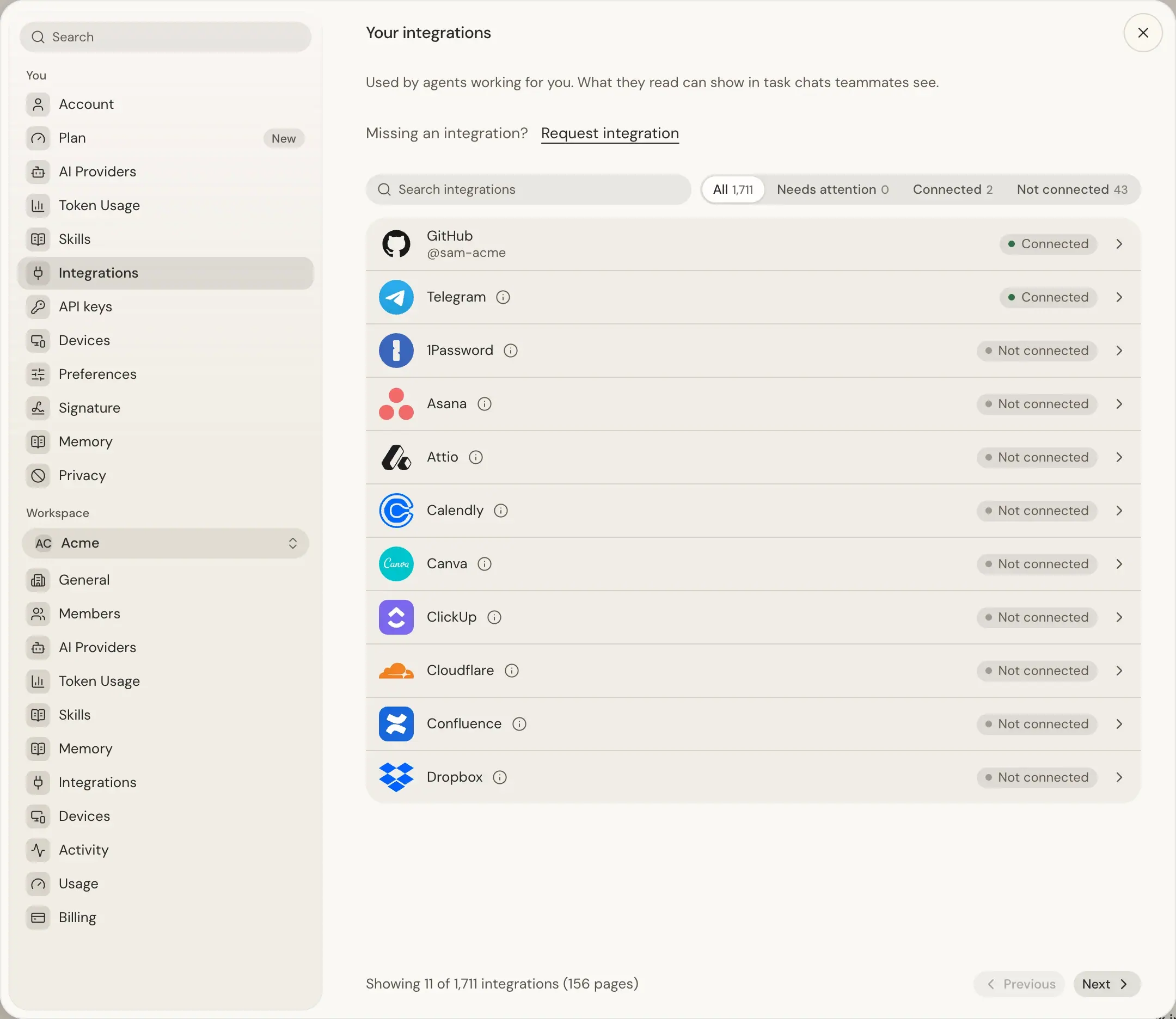
- Open Settings > You > Integrations, and search the list or filter it with All, Needs attention, Connected or Not connected.
- Click the tool's row, then press Connect, such as Connect Gmail.
- Sign in on the tool's own page and approve its default permissions, or enter the key it asks for.
- Back in Settings, the card reads Connected as followed by the account, when the tool names one.
Telegram, WhatsApp, Excalidraw, LinkedIn and X connect in a dialog instead; see their sections below. An unfinished authorization lapses after 10 minutes; press Cancel to drop it sooner. Sensei can also offer a Connect button in a thread when a task needs a tool.
Find a tool that is not listed
A search also looks in the workspace's integrations, the workspace picked under Workspace in Settings. A match there shows under a heading such as In Acme workspace integrations, with Open in Workspace. Only a workspace admin can connect it there.
Under All, the list also shows tools Composio offers that Sensei does not support yet. Such a row has only Request integration, which sends Sensei the request and then reads Requested. For anything else, Request integration after "Missing an integration?" above the list opens an email to support@kosuke.ai.
Connect more than one account
Every tool except WhatsApp, Excalidraw, Higgsfield, 1Password and Typefully can be connected more than once, for example two Google accounts. Press Add another connection on a connected row. Each connection is its own card.
Each card has a label, read from the tool where it can be, such as your mailbox address for Gmail. Google Docs, Sheets, Slides, Calendar, Meet, Jira, Confluence and Fathom ask you to type one. Rename a card with its pencil icon, except Telegram, WhatsApp and Excalidraw. Connecting an account twice is refused for most tools; re-authorizing a Notion workspace can instead sign out the earlier card, which then needs Reconnect.
Agents pick a connection by its short id or scope:label, such as personal:work@example.com, as each card shows.
Catalog
Agents can use every action Sensei offers for a tool: reads, creates and updates. Actions that delete are never offered, and a sent request, such as a mail, cannot be recalled.
| Tool | Connects with | What Sensei can do | Notes |
|---|---|---|---|
| Gmail | Google sign-in | Read, search, draft and send mail; unsubscribe from newsletters | Watched messages |
| Google Drive | Google sign-in | Find, read and organize files | |
| Google Docs | Google sign-in | Read and edit documents | Type a label |
| Google Sheets | Google sign-in | Read and edit spreadsheets | Type a label |
| Google Slides | Google sign-in | Read and edit presentations | Type a label |
| Google Calendar | Google sign-in | Read and manage events | Type a label; events can carry a Meet link |
| Google Meet | Google sign-in | Read past meetings, transcripts and Gemini notes; create spaces | Transcripts only for meetings with transcription on |
| YouTube | Google sign-in | Upload and manage videos, playlists and comments | |
| Dropbox | OAuth | Search, download, upload, move and rename files | No sharing or shared links |
| Slack | OAuth | Read channels, DMs and files; post messages and reactions as you | Watched messages; see Slack |
| Telegram | Phone code or QR code | Read chats, contacts and stories; send, forward, edit and delete your messages | Watched messages; see Telegram |
| QR code or pairing code | Read stored chats; send as you | Watched messages; against WhatsApp's terms; see WhatsApp | |
| Sensei's browser on your Mac | Work in your account; read new direct messages | Needs a Mac; see LinkedIn and X | |
| X | Sensei's browser on your Mac | Work in your account; read new direct messages | Needs a Mac; see LinkedIn and X |
| Excalidraw | No sign-in | Create diagrams, share links, extend a shared drawing | See Excalidraw |
| Linear | OAuth | Read, create and update issues, projects and comments | One Linear workspace per connection |
| Jira | Atlassian OAuth | Read issues, boards and sprints; create and update issues and comments | One Jira Cloud site per connection |
| Confluence | Atlassian OAuth | Read spaces, pages and comments; create and update pages; comment | One Confluence site per connection |
| Asana | OAuth | Read projects and tasks; create, assign, complete and comment on tasks | Reaches every Asana workspace of your login |
| ClickUp | OAuth | Read tasks, docs and chat; create and update tasks, comments and docs | Cannot send chat messages or archive |
| Figma | OAuth | Read files, components and comments; render images; comment | Reaches every file your account can open |
| Notion | OAuth | Search and read pages, databases and comments; create and update them | Only the pages you share at sign-in |
| Attio | OAuth | Read, create and update records, lists, notes and tasks | Admin approval may be needed; can reach the whole workspace |
| Salesforce | OAuth | Query, create and update records; run reports; send email | Enter your My Domain if your org needs it |
| Zoho CRM | OAuth | Read, create and update records and notes; convert leads | Enter your Zoho data center first |
| Zoho Books | OAuth | Read the books; create and update contacts, estimates and payments; email invoices | Enter your Zoho data center first; no one-off invoices |
| Zoho Invoice | OAuth | Read, create and update invoices, estimates and payments; email invoices | Enter your Zoho data center first |
| Xero | OAuth | Read, create and update invoices, bills and payments; read reports | Choose the organisations at sign-in |
| QuickBooks | OAuth | Read reports; create and update customers, invoices and bills | One company per connection; keep the default URLs |
| FreshBooks | OAuth | Read businesses, clients, projects and journal entries | Read only |
| Mercury | OAuth | Read accounts, transactions and statements | Read only; reads show full account numbers |
| Rho | API access token | Read accounts, transactions and statements | Read only; see Tools that take a key |
| Granola | OAuth | Read meeting notes, summaries and transcripts; ask about your meetings | Read only |
| Fathom | OAuth | Read meetings, summaries and transcripts; get recordings | Read only; type a label |
| Zoom | OAuth | Read meetings, summaries and recordings; schedule a meeting | A company Zoom admin may need to allow the app |
| Microsoft Teams | OAuth | Read teams, chats and meetings; post and reply; create chats and tasks | A Microsoft 365 admin may need to approve |
| Outlook | OAuth | Read, draft and send mail; manage events and contacts | A Microsoft 365 admin may need to approve |
| Calendly | OAuth | Read events and availability; create event types and links; book meetings | No cancel or reschedule links in answers |
| Canva | OAuth | Read and export designs; create designs; upload assets; comment | Some actions need a paid Canva plan |
| Miro | OAuth | Read boards and items; create boards and add or update items | One Miro team per connection |
| Monday | OAuth | Read boards and items; create items; post updates | A monday.com admin may need to install the app |
| Typefully | API key | Read social sets and drafts; create, schedule and publish posts | Posts go out as you; one connection |
| Higgsfield | API key ID and secret | Generate images and videos; create Soul ID characters | Spends your Higgsfield credits; one connection |
| 1Password | Service account token | List vaults and items; read items, secrets included | Read only; one connection |
| Cloudflare | Global API Key and email | Manage DNS, Workers, Pages and KV; read traffic and Worker analytics | One Cloudflare account per connection; see Cloudflare |
Many consent screens name Composio, the service Sensei connects through.
Slack
Agents act in Slack as you: they reach every channel, conversation and file your account can read, direct messages included, and what they post shows as yours. Teammates on the same Slack each connect their own account.
Telegram
- Open the Telegram row and press Connect Telegram. A dialog opens.
- Enter your phone number in international format, such as
+44 7700 900123, and press Send code. - Type the code Telegram sends to your other devices or by SMS.
- If your account has two-step verification, enter its password and press Log in.
If the code does not arrive, press Log in with QR code instead and scan it from Telegram > Settings > Devices > Link Desktop Device. A login idle for 5 minutes expires. An account already connected by you or a workspace member is refused.
Agents read your chats, contacts and stories, transcribe media, and send, forward and react as you. They edit and delete only messages you sent, and cannot join chats or change your profile. Reading marks nothing read, and the session stays encrypted on Sensei's server.
Reconnect. If you end Sensei's session in Telegram's Settings > Devices, the card reads Reconnect required: press Disconnect, then Connect. Disconnecting also ends the session in Telegram.
WhatsApp connects as a linked device. Automating a personal WhatsApp is against WhatsApp's Terms of Service and can get your number restricted or banned, so you accept that risk each time you link. WhatsApp Business is not offered.
- Open the WhatsApp row, press Connect WhatsApp, accept the risk and press Continue.
- On your phone, open WhatsApp > Settings > Linked devices > Link a device, and scan the QR code.
Or press Link with phone number instead, enter your number, press Get code, and enter the eight-character code under Link a device > Link with phone number instead on your phone.
Sensei stores 1:1 and group messages for 14 days, starting with the recent history WhatsApp sends at linking. Agents read those, transcribe attachments, and send text or files as you. They never reach status updates, broadcast lists or channels.
Paused. At the first restriction or ban signal, Sensei stops reading and sending. Press Resume to continue from the stored session.
Reconnect. If you remove Sensei from Linked devices, or the phone is offline for about 14 days, press Disconnect, then Connect. Disconnecting deletes the stored messages and contacts.
Excalidraw
Open the Excalidraw row, press Connect, read the dialog and press Connect again. No Excalidraw sign-in is needed.
Agents share diagrams as encrypted excalidraw.com links. Anyone holding a link can open it, and Sensei cannot delete it, even after Disconnect. Agents can extend a drawing you shared with Share > Export to link, returning a new link. They cannot reach your saved Excalidraw drawings, live #room= links or drawings with images.
LinkedIn and X
A LinkedIn or X connection is one account in Sensei's browser on one Mac and Chrome profile. Only your Sensei uses it.
- On a computer, press Connect on the LinkedIn or X row.
- Choose an online Mac and a Chrome profile you allowed under Settings > Devices > Chrome sign-ins.
- Press Connect. Sensei opens the site there and reads the account. If you are signed out, it asks you to sign in on that Mac.
If the site later shows another account, Sensei does nothing as it and the card reads Different account. See Watching for direct messages.
Apple apps
In the desktop app on your Mac, the same list has Apple Reminders, Apple Notes, Apple Calendar, Apple Contacts, Apple Messages and Apple Location. Each is off until you switch it on, and macOS asks once. Only your own Sensei uses them. See Apple apps.
Message watching
Sensei watches new messages on Slack, Gmail, Telegram, WhatsApp, LinkedIn and X only for the connected services you turn on in Settings > You > Preferences > Message watching. Every service starts off. Turning one off disconnects nothing. See Watching for what Sensei reads on each service and Triage and the FYI digest for what happens to each message.
Tools that take a key
These tools take a key on the page that opens. To change one, press Disconnect, then Connect; for Rho, paste a new token on the same card.
- Higgsfield: an API key ID and secret from Higgsfield's API Keys page.
- Typefully: an API key from Typefully's Settings > API.
- 1Password:
https://my.1password.comas Base URL and a service account token, reading only the vaults agents need. - Rho: a read-scoped
rhobat_token, which an Account Owner or Admin creates in Rho under Settings > Configurations > Access Tokens. It expires at its set date or after 45 days unused.
Cloudflare
- Open Cloudflare's row and press Connect Cloudflare.
- Enter your Global API Key and the email of the Cloudflare login it belongs to. A scoped API token does not work.
- Pick the account agents may use, from the first 50 accounts of the login.
The key reaches every account of its login, so Sensei holds agents to the one you pick. For the best protection, use a Cloudflare user that belongs to only that account. Add one connection per account.
Agents cannot delete, manage tokens or secrets, create zones, purge the cache, manage Worker routes, read R2 objects or run D1 queries. One call carries at most 64 KB. If the key is revoked, press Disconnect, then Connect with the new one.
Who can use a connection
Your connections serve turns you started: your Sensei, tasks you are the Assignee of and the Delegated Runs they start. Say "my Linear" for yours and "the workspace's Sentry" for a workspace one. An API key can also list and call them; see Run integration tools.
Nobody else gets them:
- A turn a teammate sent in your session acts as the workspace.
- Workspace Crons, Deploy Chat and unassigned work use workspace integrations only. A Personal Cron uses yours.
- A teammate's agents never reach your connection, even in a shared project.
What an agent reads can show in the session's messages, which teammates can read.
Connection status
| Status | What it means | What to do |
|---|---|---|
| Not connected | Nothing is connected. | Press Connect. |
| Connecting | An authorization is waiting to be finished. | Finish it, or press Cancel. |
Connected as <account> | Agents act as the account shown. | Nothing. |
| Temporarily unavailable | The tool could not be reached just now. | Try again shortly. |
| Reconnect required | The authorization stopped working. | Press Reconnect, or Disconnect then Connect for tools that take a key, Telegram, WhatsApp, LinkedIn and X. |
| Paused | WhatsApp signalled a restriction or ban. | Press Resume. |
| Not available | Your deployment does not offer the tool. | Ask whoever runs your deployment. |
Disconnect
- Open the tool's row and press the trash icon on the connection's card.
- In the dialog, press Disconnect.
Agents lose access at once, in running tasks too. Revoking the authorization inside the tool is a separate step there. Leaving a workspace needs no disconnect; deleting your account disconnects everything. From a script, use kosuke integrations connections delete personal <toolkit> --connection-id <connectionId>.
Limits
- Connecting needs your browser. An API key can only list and disconnect.
- One unfinished authorization and one Telegram login at a time; starting another ends the first.
- Telegram: 3 login codes an hour per number; 10 sends a minute and 200 a UTC day per account.
- WhatsApp: 10 link starts and 3 pairing codes an hour; 5 sends a minute and 50 a UTC day, one at a time.
- Telegram and WhatsApp files up to 20 MB, transcription up to 10 MB.
- Excalidraw: 10 shares a minute and 200 a UTC day.
- Sensei never enters X's encrypted-chat passcode. If X Chat asks for it, unlock X Chat on your Mac.
Next steps
- Integrations for the tools a workspace's admins connect for everyone.
- Watching for what Sensei reads on the services you turn on.
- Your account and preferences for the rest of Settings > You.