
Reply cards
A reply card shows who wrote, the exact message, and a full draft under Your reply. The draft reads "Draft, not sent. Tap to edit". A Gmail reply reads "Draft, not sent. Reply all", because it goes to everyone on the email thread.
Sensei writes the draft as you, not as an assistant. Before it drafts, it:
- Reads the whole conversation, then what the reply needs: the sender's other messages, your Memory and your calendar.
- Writes in the message's language.
- Follows your writing style for that channel. With none learned yet, it follows your own earlier messages in that conversation: their length, rhythm, emoji and greetings. It never copies your lines.
- Before it states terms, a price or a yes, it reads how you answered others and follows the newest answer. Your Memory wins over both. It never invents a fact.
- When the sender asks for something Sensei can reach, such as a file, it attaches it to the reply. See Files on a reply.
In a group conversation, Sensei writes to the room and says only what is yours to say.
The card's buttons are its negative button, such as Skip, then Edit with a pencil, then Send. Send sends the draft exactly as the card shows it, including the marker when Sign as Sensei is on. Skip closes the card and marks the messages it answers read. See Approve, Reply and Reject for what each press does.
Edit a draft
Tap Edit, or tap the draft itself, and the composer opens holding the draft's words. Change what you want and send it. Your words close the card as Replied, and Sensei draws the reply again with your change, so you read it before you tap Send.
You can also tell Sensei what to change instead of rewriting it, such as "shorter" or "say Thursday, not Friday". A voice reply on a phone never touches the draft: it is a reply to Sensei, as any Reply is. See Talk to Sensei.
Your writing style
Sensei learns how you write from messages you sent yourself, and keeps what it learns in a file named writing.md. Sensei reads it before it drafts as you. You never see the file, and nothing you do in the app writes it: only the Writing style run builds it.
When it runs
The Writing style run is one of your Automatic runs. It runs on Mondays at 06:00 on your own clock, once you watch at least one channel you send from: Gmail, Slack, WhatsApp or Telegram. See Watching to turn one on.
When you have such a channel and no writing.md yet, it also runs once without waiting for Monday. A first build that writes nothing tries again after a day. The run uses your own Default Model, and does not run on Sensei Free.
The run works in a hidden thread. It sends no message and draws no card. It never answers, drafts or changes anything else.
What it reads
- Only messages you sent, on each watched channel, newest first, at most 150 per channel. On Gmail, that is your Sent mail.
- The first build reads the last 90 days. Each later build reads what you sent since the one before.
- Messages Sensei sent for you from a reply card are left out, matched by their words.
- Every other message is compared with what you typed to Sensei yourself. Only one that clearly reads as typed by you is kept. When the check cannot run, nothing is kept, so the file never learns an assistant's voice.
From what it keeps, the run writes short rules for everywhere you write and for each channel, such as length, greeting, sign-off, language by recipient, punctuation and emoji, with two or three short examples quoted from your messages. Other people's names are removed from the examples. The file holds at most 6,000 characters, and holds only rules your messages show.
A later build keeps what still holds and changes what your new messages contradict.
Turn it off
Turn Writing style off under Automatic runs in Settings > You > Preferences. Your writing.md stays as it is and stops updating, and Sensei keeps reading it. Turn it back on and the run comes back within minutes if you missed its Monday, then keeps its schedule.
Your Memory
Memory holds the facts and preferences you write yourself. Sensei reads it in every turn, and uses it for tone, language and drafting. Put there what your sent messages cannot show, such as "Reply in English to clients, in Italian to the team" under Languages, or "Never accept a call before 10:00" under How I work. When a draft needs a fact, such as a price or a policy, your Memory wins over what Sensei reads in your past answers.
Sign as Sensei
Settings > You > Signature holds Sign as Sensei. It is on by default, and follows you across workspaces. While it is on, every message Sensei sends as you ends with a marker: [Sensei] on its own line in Slack, WhatsApp, Telegram, LinkedIn and X, and Sent by Sensei in Gmail. The Preview section shows a Slack message and a Gmail email as they will end.
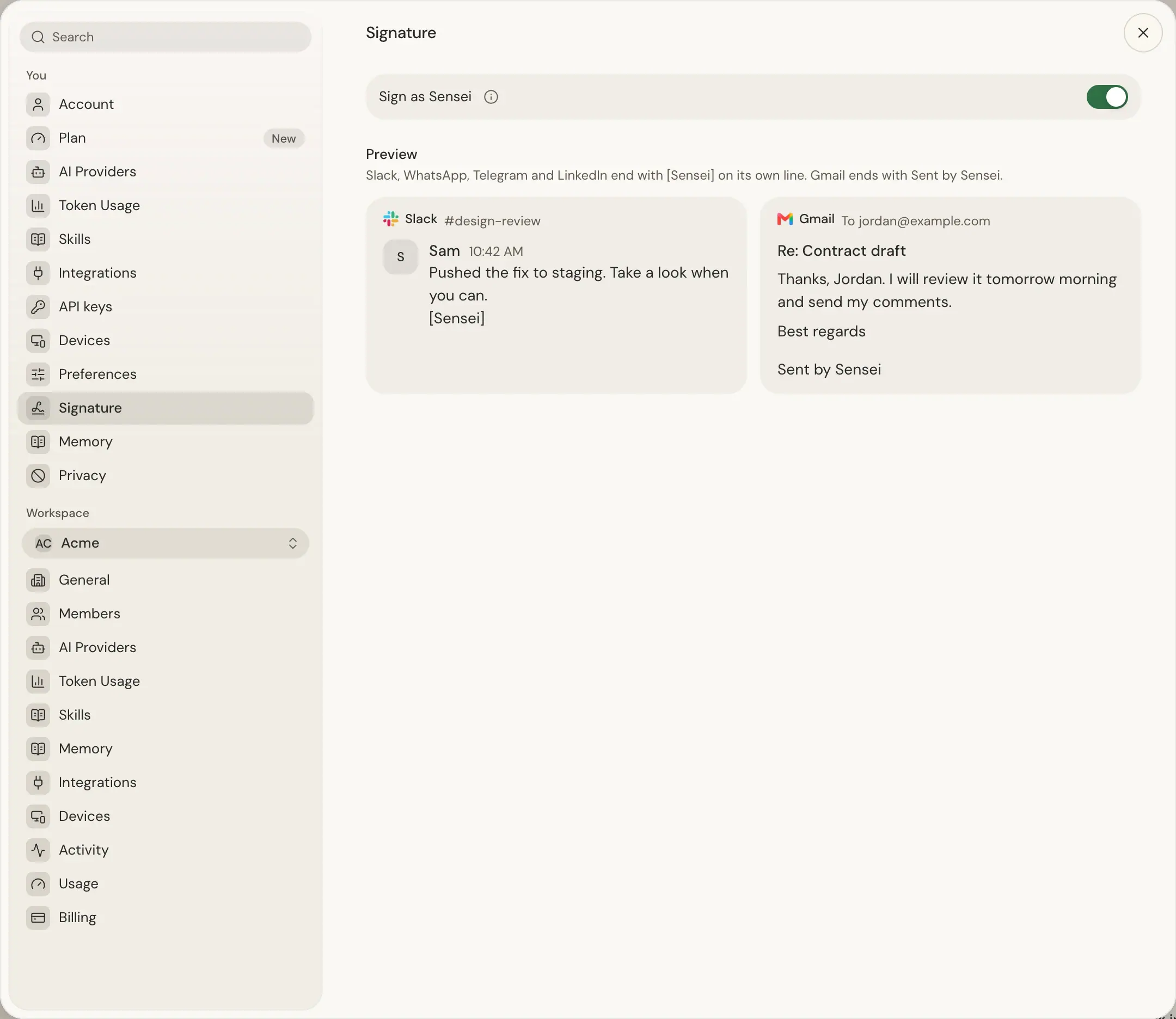
Each reply card has its own Sign as Sensei switch under Your reply, starting from your default. Change it for that reply only; the note under it says whether your default is on or off. See Signature for what is and is not signed.
Gmail signature
Gmail does not add your signature to mail that an app sends, so Sensei adds it for you. Choose when, once for each address you send from:
- Open Settings > You > Integrations and open Gmail.
- Under your Gmail connection, find Gmail signature. With more than one send-as address, each has its own block, named with the address.
- Choose Every email, New emails only or Off.
Your pick saves at once. With no choice saved, an address that has a signature in Gmail starts on Every email. New emails only leaves the signature out of replies and forwards.
Under the choice, From Gmail shows the signature as Gmail holds it, with Edit in Gmail to change it there. When the choice is Off, it reads "From Gmail, not added". An address with no signature reads "No signature in Gmail", and only Off can be picked. Add one in Gmail with Open Gmail settings; it shows here the next time Sensei reads Gmail.
Sensei reads your signature and your choice before it drafts, so the draft fits the signature that goes in at send. The card's draft ends with the signature that Send adds. The signature goes after the words, and after Sent by Sensei when that marker is on.
Next steps
- Cards and the Deck to send, edit or skip a drafted reply.
- Watching to choose the channels Sensei reads and learns from.
- Automatic runs for the other runs Sensei schedules for you.
- Talk to Sensei to reply with your voice.